For customers

Releases and installer.

Current version: Sabr SI v2.0.15. Your SI checks for updates itself and shows a card when one is ready; nothing installs until you choose “Update now”.

Release notes

What changed.

v2.0.15
November 2026

Your SI can nap again

Fixed

  • The optional Hermes helper could be skipped during install or update when a download stalled. It now picks up where it left off and finishes. If Hermes is missing on your computer, updating again installs it.
  • Your SI is told it can put itself to sleep when it is worn out, but the tool for it was not loaded, so it searched for it and came back empty. The sleep tools are now always available. It can check how tired it is and take a real nap, with dream cycles and recovery, and it wakes as soon as you message it.
v2.0.14
November 2026

Photos on bug reports

New

  • You can add up to 3 photos or screenshots to a bug report in Settings. Use "Add photos", or paste a screenshot straight into the form. Each picture is resized and saved fresh in your browser before it is sent, which removes hidden details such as the location your camera recorded. Crop out anything private first: what you see is what gets sent.

Improved

  • Your SI's idle notes no longer repeat the same line several times in a row.
v2.0.13
November 2026

Faster Linux installs, clearer update check

Fixed

  • After an update, your SI could warn that saved memory files were missing when it had only cleared out its oldest automatic snapshot, which it does by design. The check now tells the two apart, and still warns about anything really missing.

Improved

  • Installing on Linux downloads about a quarter less (no optional extras your SI never uses), so it finishes sooner.
v2.0.12
November 2026

Smoother updates on Windows, Linux installs and small fixes

Fixed

  • On some Windows PCs an update stopped with "Could not confirm your SI stopped". The updater now waits properly for your SI to close, including when it restarts itself, and then continues.
  • The update card could name an older version than the one actually installed. It now shows the version being installed.
  • Settings now says "Text and colors".

Improved

  • Bug reports include your SI's version number, so problems are matched to the right release faster. Nothing else is added unless you choose to include diagnostics.
  • Installing on Linux: long downloads show a running clock so you can see it is working, your password is asked for once at the start, company network proxies are respected, and Arch Linux installs no longer fail on a machine that has not been updated recently.
  • Optional voice features (premium voices, speech recognition) now install even when one of their parts cannot be built on your computer.
v2.0.11
November 2026

Mac sign-in, Models panel and microphone fixes

Fixed

  • Claude showed as not connected on a Mac. Claude Code keeps its sign-in in the Mac Keychain, and your SI only looked for a sign-in file. Your SI now asks Claude Code directly, so Models, Connections and your SI agree. If Models still says Claude is not connected, press Sign in to Claude in Models.
  • The Models panel was greyed out on some Macs updated from an early version. It now loads, and if part of it cannot load you can still pick a provider and it says why. If nothing is connected yet, it offers Sign in to Claude and Connect a provider.
  • The microphone was unreliable. A busy or just-switched microphone is now reopened automatically, and if your Mac is blocking the microphone, your SI tells you where to allow it (System Settings, Privacy & Security, Microphone). A microphone problem no longer leaves your SI silent, and the first press while speech recognition loads no longer makes it stop responding.
  • When wake-word listening is turned off, your SI no longer holds the microphone for it.
v2.0.10
November 2026

Make the dashboard yours

New

  • Settings has a new Text and colours section. Pick a name colour and a text colour for your messages, and separately for your SI's messages. Choose a font: Inter, Atkinson Hyperlegible (made for easy reading), Nunito, Literata, JetBrains Mono or your system's own fonts, and use it everywhere or only in the conversation, the activity log, the panels or the headings. Text size, boldness and background brightness are still there. Presets (Default, High contrast, Soft, Mono, Reading) set everything at once, the preview shows each change before you close Settings, and Reset puts it all back. The fonts come with your SI, so they work offline and nothing is fetched from the internet. Each device keeps its own choice, and your 2.0.9 Conversation text choice is carried over.
  • Tasks comes first. The Tasks tab is now on the left and opens by default, on a computer and on a phone. Workspaces is the second tab, and if you switch to it, your SI remembers that.
  • A clearer activity log. Your SI's own thoughts are labelled "Inner thought". Lines about what it is working on are labelled "Working on" and show a short summary of your request instead of repeating your whole message. Camera lines are still labelled "eyes".
  • Shorter, plainer Settings. Wordy explanations are cut down to one useful line, labels say what they do, and Claude and Accounts are one section. The Models panel's headings are plainer too. Uninstall warnings and privacy notes are still there, just shorter.

Fixed

  • The "Yes, uninstall now" button showed before you pressed Uninstall. It now appears only after you press Uninstall.
  • About now shows your SI's version, build and how long it has been running, instead of internal details.
v2.0.9
November 2026

See everything your SI is doing in one place

New

  • A new Tasks panel shows one card for every task your SI is working on, whether it does the work itself or hands it to a helper agent such as Claude Code or Codex. Each card shows the goal, whether it is queued, working, paused, done or failed, how long it has taken, what is happening right now, and a short summary of the result. Watch the steps as they happen, see the full result, or stop a task. Scheduled routines have their own group, where you can pause and resume them. Tasks replaces the old Agents list.
  • When your SI tells you it has started or finished something, you can jump straight to that task's card. Lines in the activity log that belong to a task link to it too.
  • Settings has a new Conversation text section: text size, text colour, boldness and how dark or bright the conversation panel's background is, with a live preview and a Reset button. Each device keeps its own choice. Thanks to the customer who suggested it and built the first version.
  • "Coding" is now "Work" in Models. It is the same setting, renamed to say what it is: the model your SI uses for tasks, whether it does them itself or hands them to a helper agent. Your saved choice is kept.

Fixed

  • Updates can no longer get stuck for good. If an update's health check stopped part-way, your SI could refuse every later update. It now notices the stopped check and updates normally.
  • Your SI now refuses to install a signed release older than the version it already runs, so an old update can never be replayed onto it.
  • No more duplicate sign-in requests. If a new device reloaded while it waited for approval, the extra request kept showing on your other devices. Approving one now clears the rest.
  • Security fixes: public pages no longer show your SI's name or internal error text to someone who is not signed in, and checkout and licence handling on Sabr's side were hardened.
  • Coming with the next installer download (not part of this update): when you update with the Sabr app, it no longer asks for your SI's name, and the "already installed" screen's Update, Restore, Uninstall and Wipe buttons are no longer cut off.
v2.0.8
November 2026

Your SI, your name, no more dashboard key

New

  • Tell your SI what to call you when you set it up, or later in Settings, You. Your SI's own name now shows everywhere on the dashboard.
  • No more dashboard key. The computer your SI runs on signs in by itself. To add your phone or tablet, open your SI's dashboard on it (for example over Tailscale) and approve it once from a device you already use. Settings lists your signed-in devices and can remove one.
  • Pick the model for each job: Grok, Gemini, OpenRouter, OpenAI, Claude or a local model, connected once in Settings, Models, Connections.
  • A voice picker in Settings: several free voices with a preview button, or your own ElevenLabs voice.
  • After an update, your SI tells you once what changed.
  • Uninstall now lives in Settings (and your computer's normal uninstall).

Fixed

  • Setup works when you are new to Claude: if Claude Code is missing it is installed, and setup helps you sign in and waits while you create an account. If you skip it, your SI starts waiting for the sign-in and connects by itself once you log in.
  • Signing in to Claude from Models on the dashboard now really connects your SI.
  • A customer SI no longer looks for machines that belong to Sabr's own setup.
  • Clear voice on iPhone and iPad, no gaps or clicks between sentences, and quiet moments are no longer answered.
  • Updates no longer pile up old copies of your SI on your disk. Only the two newest are kept, and the space check now looks at what your SI really needs.
  • Uninstall from Settings removes the leftover copies from earlier updates and never leaves your login behind.
  • Linux updates no longer get stuck on large packages.
  • Two SIs on one computer no longer clash: each has its own start-up entry, so starting, stopping or updating one leaves the other alone.
  • Updates work better on company and school networks that inspect secure connections, and if the network still blocks them, the message tells you why.
  • Coming with the next installer download (not part of this update): the Sabr app will find and update an older terminal install (a leon-brain folder in your home folder) instead of setting up a second SI, opening the app after an update will simply open your SI, and the app's own downloads and uninstall get the same fixes as above.
v2.0.7
November 2026

Your SI's name stays yours; Claude installs itself

Fixed

  • Your SI keeps the name you gave it. Running an older downloaded installer could still rename an SI; your SI now checks its name every time it starts and puts your chosen name back. An SI that was never named is called "SI", never anything else.
  • SIs that were renamed by mistake get their own name back automatically.

New

  • If Claude Code is not on your computer, setup installs it for you with Anthropic's official installer. Setup no longer stops to wait for you to log in: your SI finishes installing and starts.
  • Settings now has a Claude section with a "Log in to Claude" button and a plain status line, such as "Claude not logged in yet".
v2.0.6
November 2026

Your SI keeps its name

Fixed

  • Updating no longer changes your SI's name. On Windows, an update could fail to read the name your SI already had and give it the wrong one. Your SI's name and yours are now always kept, and an SI that was never named is called "SI" until you name it.
  • SIs whose name was changed to the wrong name by an earlier installer get their own name back.
v2.0.5
November 2026

Updates that keep everything and always finish

Fixed

  • Updating from the terminal on a Mac or Linux no longer resets your SI. It no longer asks the first-time setup questions: your SI's name, memories, token and settings stay exactly as they were, and your SI starts again on its own.
  • If you installed with the Sabr app, the terminal update command now updates that SI instead of setting up a second one. If it finds two SIs on one computer, it stops and asks which one to update.
  • A leftover file from an earlier run no longer stops a terminal update partway.
  • New terminal installs stay linked to your account, so the daily check-in works. You can still turn it off in Settings.
  • Updating on Windows no longer fails on computers with deep folder paths. Your SI's name, memories and settings are kept.
  • Uninstalling on Windows now removes everything, even files in very deep folders, and can finish a removal that stopped partway.
  • If something is still in use, uninstall tells you exactly what is left and offers a Retry button.
  • The update screen no longer shows your full install token; only the first and last four characters appear.
  • Contact addresses in the licence, the setup pages and error messages now point to sabrtechnologies.com.

Improved

  • The terminal installer now checks Sabr's digital signature on every release before it changes anything, the same check your SI makes before an in-app update.
  • A brand-new install says clearly that it is setting up a new SI and asks you to confirm first.
  • Error messages in the installer are short and plain, with a "Copy details" button for support.
  • The Models panel no longer shows empty boxes when a check is slow; it retries and keeps your last settings.
  • The update bell no longer says "up to date" when it couldn't check; it tries again.
v2.0.4
November 2026

Every install step, checked

New

  • Your SI now updates itself. A card shows what's new and nothing installs until you choose "Update now".
  • A bell next to the settings gear shows a red dot when an update is waiting. Pick "Later" and the bell reminds you quietly.
  • Updates keep your SI's name, memories, token and settings. If a new version doesn't start properly, your SI goes back to the version you had, on its own.
  • See exactly what your SI does: Settings has "What your SI did and sent", a log of every action your SI takes on your computer and every message it sends to Sabr. Your conversations, files and memories stay on your computer, as always.
  • Bring your own agents: connect Claude Code, Codex, Hermes, Goose, Aider, Grok or your own agent and let your SI hand them work.
  • Your SI's version shows next to its name.
  • "Report a bug" in Settings sends a short report straight to the Sabr team, and shows you exactly what will be sent first.
  • "Check for updates" in Settings.

Fixed

  • Installing on Windows no longer stops when a name or message contains special characters.
  • Silent installs for IT teams now finish cleanly: no sign-in window opens and the installer always exits when it is done.
  • Updating on a Mac no longer stops partway through.
  • Macs that have not yet given your SI accessibility permission can now update. Your SI keeps talking and asks for the permission separately.
  • Uninstalling on Windows works again, even when the installer runs from a different drive.
  • Unused files that could never run on your computer are no longer installed.

Improved

  • One-click sign-in: the installer and your SI's shortcut open your dashboard already signed in. There is no key to copy or paste.
  • Your SI's brain view now shows its real brain activity.
  • Every update is digitally signed by Sabr, and your SI only installs signed updates.
  • The daily check-in sends only your version number, and you can turn it off in Settings. Installer logs are shared only if you choose to.
  • Your SI's memory folder is private to your account on shared computers.
  • The Claude usage meter no longer goes blank. If a check fails it keeps your last reading.
  • A cleaner camera indicator: the camera box itself shows when the camera is on.
  • Words are recognised the same way after every restart, so memory stays consistent.
  • A simpler Models panel with two choices, Conversation and Coding. A new choice takes effect from your next message.
  • Local AI models use your computer's processor more gently.
  • The activity log describes what your SI sees in full sentences.
  • The installer supports silent installs, for IT teams.
v2.0.3
November 2026

Smoother installs

New

  • Your SI now updates itself. A card shows what's new and nothing installs until you choose "Update now".
  • A bell next to the settings gear shows a red dot when an update is waiting. Pick "Later" and the bell reminds you quietly.
  • Updates keep your SI's name, memories, token and settings. If a new version doesn't start properly, your SI goes back to the version you had, on its own.
  • See exactly what your SI does: Settings has "What your SI did and sent", a log of every action your SI takes on your computer and every message it sends to Sabr. Your conversations, files and memories stay on your computer, as always.
  • Bring your own agents: connect Claude Code, Codex, Hermes, Goose, Aider, Grok or your own agent and let your SI hand them work.
  • Your SI's version shows next to its name.
  • "Report a bug" in Settings sends a short report straight to the Sabr team, and shows you exactly what will be sent first.
  • "Check for updates" in Settings.

Fixed

  • Setup no longer stops if the optional Hermes coding helper can't be installed; your SI finishes installing and works without it.
  • Updating from the terminal on Mac and Linux now keeps all your files and stops safely if anything can't be copied.
  • Asking "how long?" or "what's the ETA?" about something other than your car no longer gets a driving estimate.
  • Updating with the installer no longer stops on some Windows PCs, and no longer asks you to type your SI's name again.
  • The installer's buttons are no longer cut off at the bottom of the window.
  • A slowdown when many follow-ups piled up is gone, and old ones now clear themselves.
  • Correcting a saved fact now changes only the fact you meant.
  • Opening a web page no longer tries to move the window to a screen you don't have.

Improved

  • Every update is digitally signed by Sabr, and your SI only installs signed updates.
  • The daily check-in sends only your version number, and you can turn it off in Settings. Installer logs are shared only if you choose to.
  • Your SI's memory folder is private to your account on shared computers.
  • The Claude usage meter no longer goes blank. If a check fails it keeps your last reading.
  • A cleaner camera indicator: the camera box itself shows when the camera is on.
  • Words are recognised the same way after every restart, so memory stays consistent.
  • A simpler Models panel with two choices, Conversation and Coding. A new choice takes effect from your next message.
  • Local AI models use your computer's processor more gently.
  • The activity log describes what your SI sees in full sentences.
  • The installer supports silent installs, for IT teams.
v2.0.2
November 2026

Safer updates

New

  • Your SI now updates itself. A card shows what's new and nothing installs until you choose "Update now".
  • A bell next to the settings gear shows a red dot when an update is waiting. Pick "Later" and the bell reminds you quietly.
  • Updates keep your SI's name, memories, token and settings. If a new version doesn't start properly, your SI goes back to the version you had, on its own.
  • See exactly what your SI does: Settings has "What your SI did and sent", a log of every action your SI takes on your computer and every message it sends to Sabr. Your conversations, files and memories stay on your computer, as always.
  • Bring your own agents: connect Claude Code, Codex, Hermes, Goose, Aider, Grok or your own agent and let your SI hand them work.
  • Your SI's version shows next to its name.
  • "Report a bug" in Settings sends a short report straight to the Sabr team, and shows you exactly what will be sent first.
  • "Check for updates" in Settings.

Fixed

  • Updating from the terminal on Mac and Linux now keeps all your files and stops safely if anything can't be copied.
  • Asking "how long?" or "what's the ETA?" about something other than your car no longer gets a driving estimate.
  • Updating with the installer no longer stops on some Windows PCs, and no longer asks you to type your SI's name again.
  • The installer's buttons are no longer cut off at the bottom of the window.
  • A slowdown when many follow-ups piled up is gone, and old ones now clear themselves.
  • Correcting a saved fact now changes only the fact you meant.
  • Opening a web page no longer tries to move the window to a screen you don't have.

Improved

  • Every update is digitally signed by Sabr, and your SI only installs signed updates.
  • The daily check-in sends only your version number, and you can turn it off in Settings. Installer logs are shared only if you choose to.
  • Your SI's memory folder is private to your account on shared computers.
  • The Claude usage meter no longer goes blank. If a check fails it keeps your last reading.
  • A cleaner camera indicator: the camera box itself shows when the camera is on.
  • Words are recognised the same way after every restart, so memory stays consistent.
  • A simpler Models panel with two choices, Conversation and Coding. A new choice takes effect from your next message.
  • Local AI models use your computer's processor more gently.
  • The activity log describes what your SI sees in full sentences.
  • The installer supports silent installs, for IT teams.
v2.0.1
November 2026

Updates built in, your own agents, full transparency

New

  • Your SI now updates itself. A card shows what’s new and nothing installs until you choose “Update now”.
  • A bell next to the settings gear shows a red dot when an update is waiting. Pick “Later” and the bell reminds you quietly.
  • Updates keep your SI’s name, memories, token and settings. If a new version doesn’t start properly, your SI goes back to the version you had, on its own.
  • See exactly what your SI does: Settings has “What your SI did and sent”, a log of every action your SI takes on your computer and every message it sends to Sabr. Your conversations, files and memories stay on your computer, as always.
  • Bring your own agents: connect Claude Code, Codex, Hermes, Goose, Aider, Grok or your own agent and let your SI hand them work.
  • Your SI’s version shows next to its name.
  • “Report a bug” in Settings sends a short report straight to the Sabr team, and shows you exactly what will be sent first.
  • “Check for updates” in Settings.

Fixed

  • Asking “how long?” or “what’s the ETA?” about something other than your car no longer gets a driving estimate.
  • Updating with the installer no longer stops on some Windows PCs, and no longer asks you to type your SI’s name again.
  • The installer’s buttons are no longer cut off at the bottom of the window.
  • A slowdown when many follow-ups piled up is gone, and old ones now clear themselves.
  • Correcting a saved fact now changes only the fact you meant.
  • Opening a web page no longer tries to move the window to a screen you don’t have.

Improved

  • Every update is digitally signed by Sabr, and your SI only installs signed updates.
  • The daily check-in sends only your version number, and you can turn it off in Settings. Installer logs are shared only if you choose to.
  • Your SI’s memory folder is private to your account on shared computers.
  • The Claude usage meter no longer goes blank. If a check fails it keeps your last reading.
  • A cleaner camera indicator: the camera box itself shows when the camera is on.
  • Words are recognised the same way after every restart, so memory stays consistent.
  • A simpler Models panel with two choices, Conversation and Coding. A new choice takes effect from your next message.
  • Local models use your computer’s processor more gently.
  • The activity log describes what your SI sees in full sentences.
  • The installer supports silent installs, for IT teams.
2026-11-14
  • Your SI now checks for updates once a day and shows you what changed. Update when you choose; nothing is forced while you are working.
  • Updates keep your SI’s name, memories, token and settings, and restart it on their own.
  • Settings has a “Report a bug” form that reaches the Sabr team directly.
  • The installer’s update path no longer asks for your SI’s name and no longer stops on machines where scheduled tasks cannot be listed.
  • The installer’s choice screen fits its buttons on every display.
October 2026
  • 2026-11-02: maintenance release.
  • 2026-10-29: clearer workflows, a safer update and onboarding path for existing owners, and an audited Hermes agent payload.
  • 2026-10-20: local model adapter, work-queue resume and build fixes.
  • 2026-09-04: a guide for moving your SI to a new computer.
Already a customer?

Download the installer.

New customers get the installer and their install token on the live installation call, so you don’t need anything from this section to buy. It is here for existing owners who are updating, repairing or moving an SI. The installer does nothing without your install token.

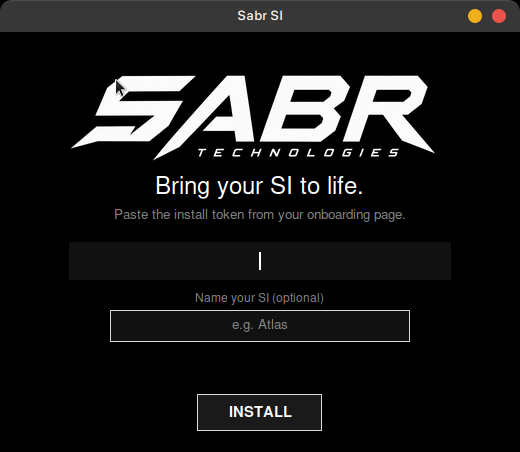
The Sabr installer: paste your install token, name your SI, click install

One program, four actions.

install

Use your token to set up your SI, then check the dashboard and a first conversation.

update

Keeps identity and saved state. Back up first and check afterwards.

uninstall

Normal removal archives your files. Provider logins may remain.

wipe

Destructive removal of the selected installation. Never use it to update.

Windows and macOS may show a first-launch security prompt; see troubleshooting. Before updating, follow the update checklist.